How I Manage Multiple AI Agents with Terminal Colors
Throughout the day, I use several AI agents in the macOS Terminal. Sometimes, it is difficult to navigate through multiple open windows and understand which agent is running in each one.
Because of this, I adapted macOS Terminal settings to help me differentiate them with color.
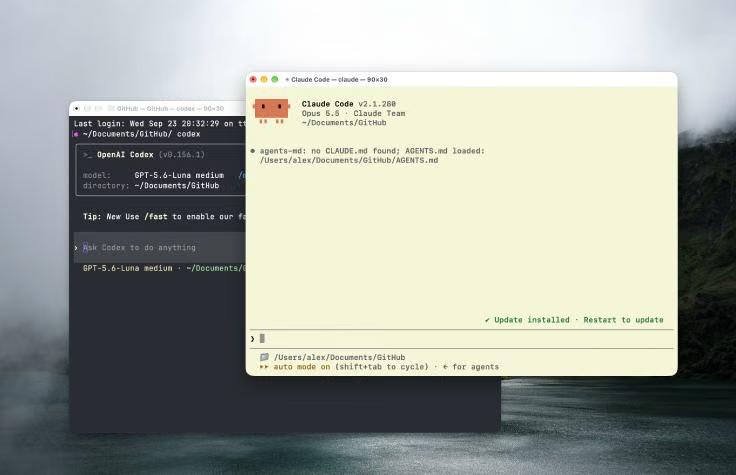
One color for each agent
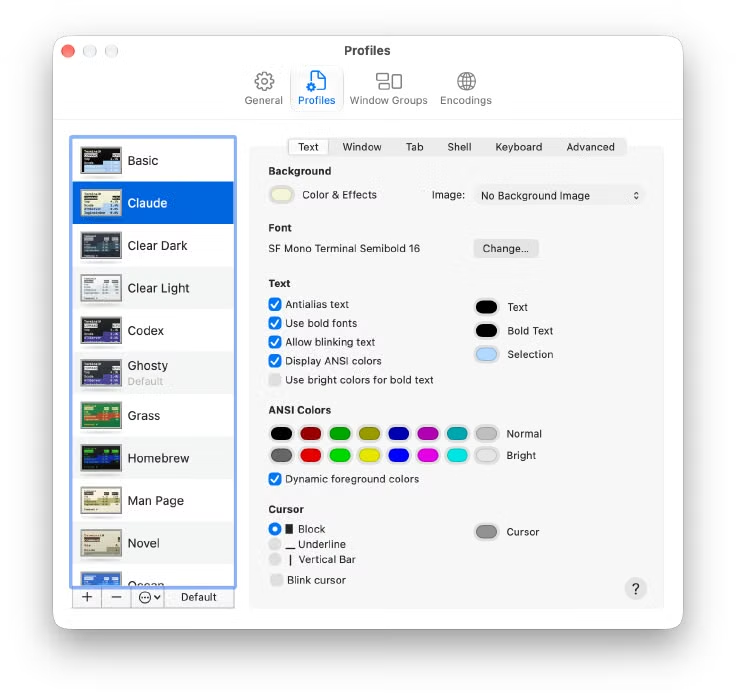
macOS Terminal has profiles. A profile can change the background color, text color, font, and cursor. I use three profiles, with a different color for each AI coding agent:
Darkfor the normal shellClaudefor ClaudeCodexfor Codex, using a separate blue appearance
Now the Terminal window changes its colors when I start one of these tools, so I can identify the active agent immediately.
This is a small change, but it makes the difference between agents visible immediately. I do not need to read the command line carefully to understand which one is running.
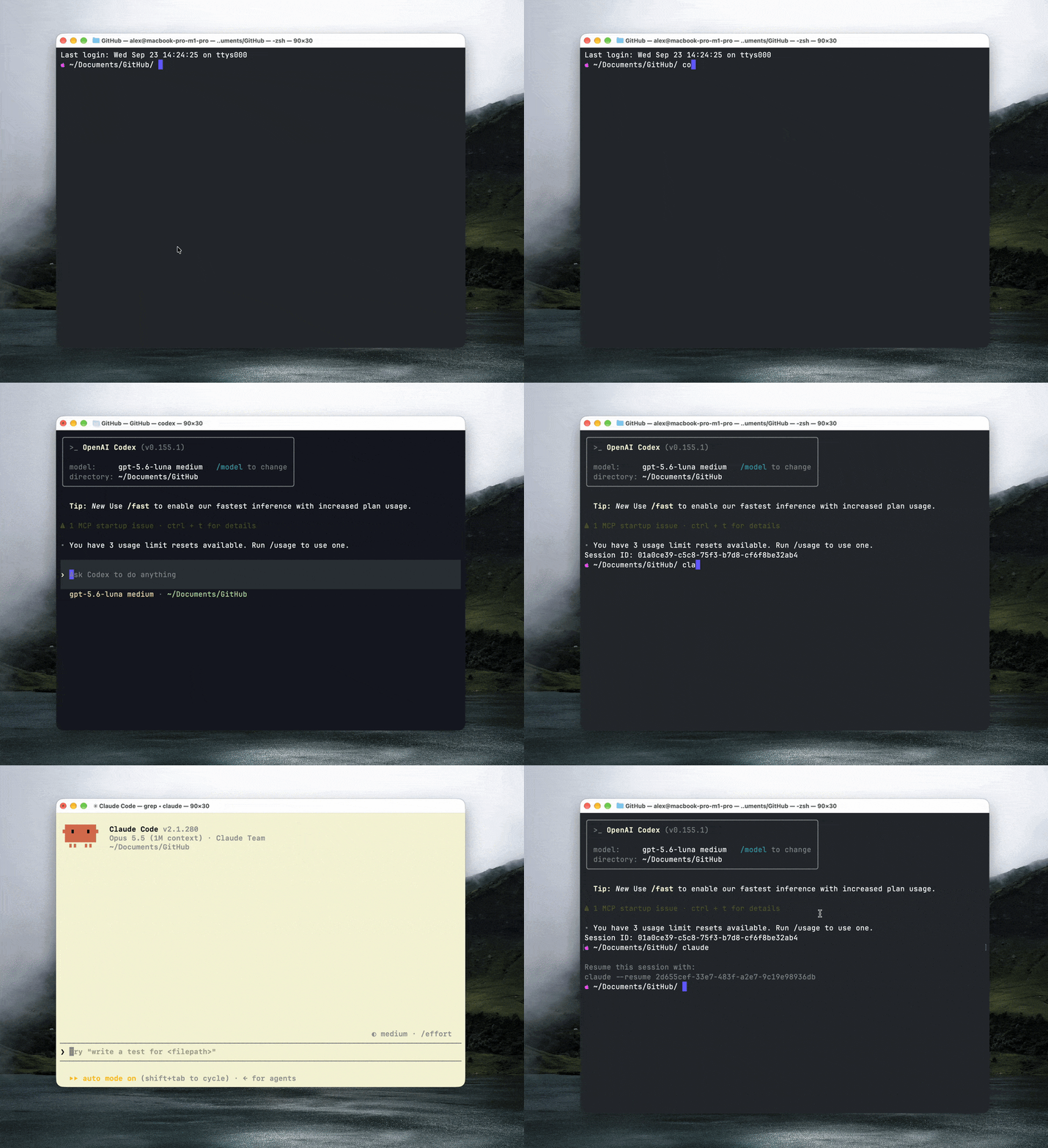
Changing the profile automatically
The setup uses two simple shell functions. Before starting the agent, the function changes the Terminal profile. When the agent closes, it changes the profile back.
For example:
claude() {
  terminal_profile "Claude"
  command claude "$@"
  terminal_profile "Dark"
}
And for Codex:
codex() {
  terminal_profile "Codex"
  local exit_code=0
  {
    command codex "$@"
    exit_code=$?
  } always {
    terminal_profile "Dark"
  }
  return $exit_code
}
After saving the changes, reload the shell configuration:
source ~/.zshrc
This applies the new functions without reopening Terminal.
The always block is important. It resets the window to the normal Dark profile even when I leave Codex with Ctrl+C.
What’s your take? I’d love to hear it.